How Konspekt handles your business calls

From connecting your phone system to a ready breakdown of every call, screen by screen. The screenshots come from version 0.15 and show made-up calls.

Connect your calls

Your phone system over SFTP

A folder in Konspekt picks up new call recordings from your phone system server, such as Asterisk, FreePBX or 3CX, over SFTP or FTP(S), and each one arrives already transcribed. Our servers are not part of this chain.

How to

  1. Right-click a folder → “Take recordings from…”, choose SFTP.
  2. Enter the server, a read-only user and password, and the directory with recordings.
  3. “Check” tests the connection. Under “What to take right away”, choose only new calls or calls from the last day, week or month.
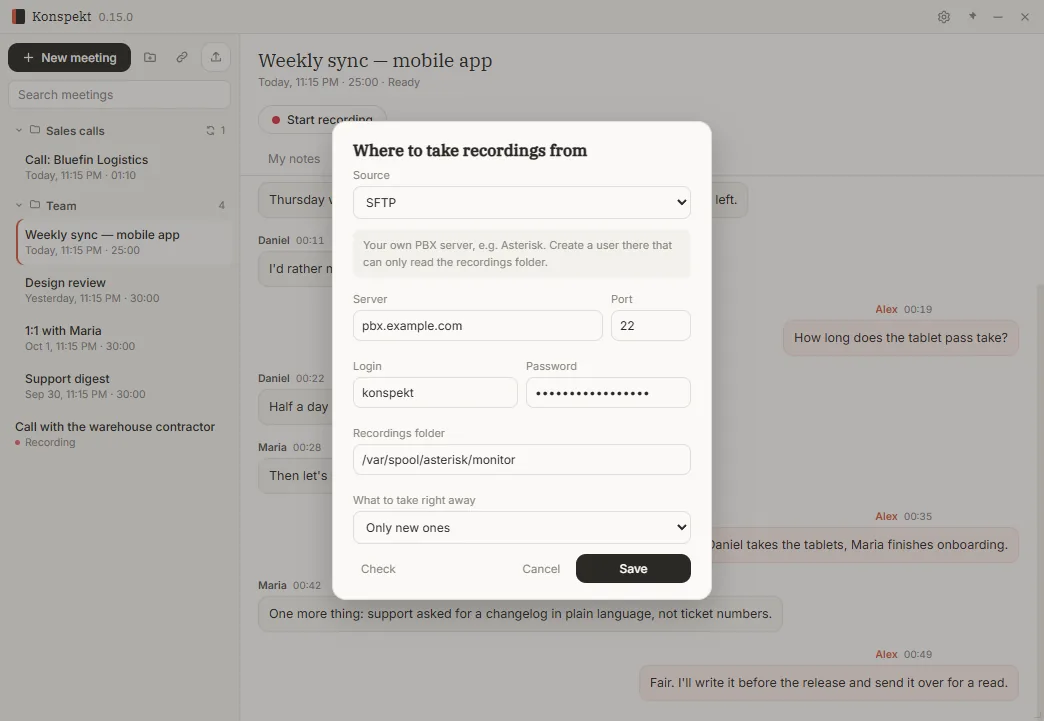
Connecting a phone system over SFTP: server, login and recordings directory

Any system that saves recordings to a folder

If your phone system, call recorder or cloud drive (Dropbox, OneDrive) puts recordings into a folder, Konspekt can watch that folder. New files turn into transcribed calls by themselves.

How to

  1. Right-click a folder → “Take recordings from a folder on disk…”.
  2. Pick the folder and choose what to take right away: only new ones or recent calls.

First launch

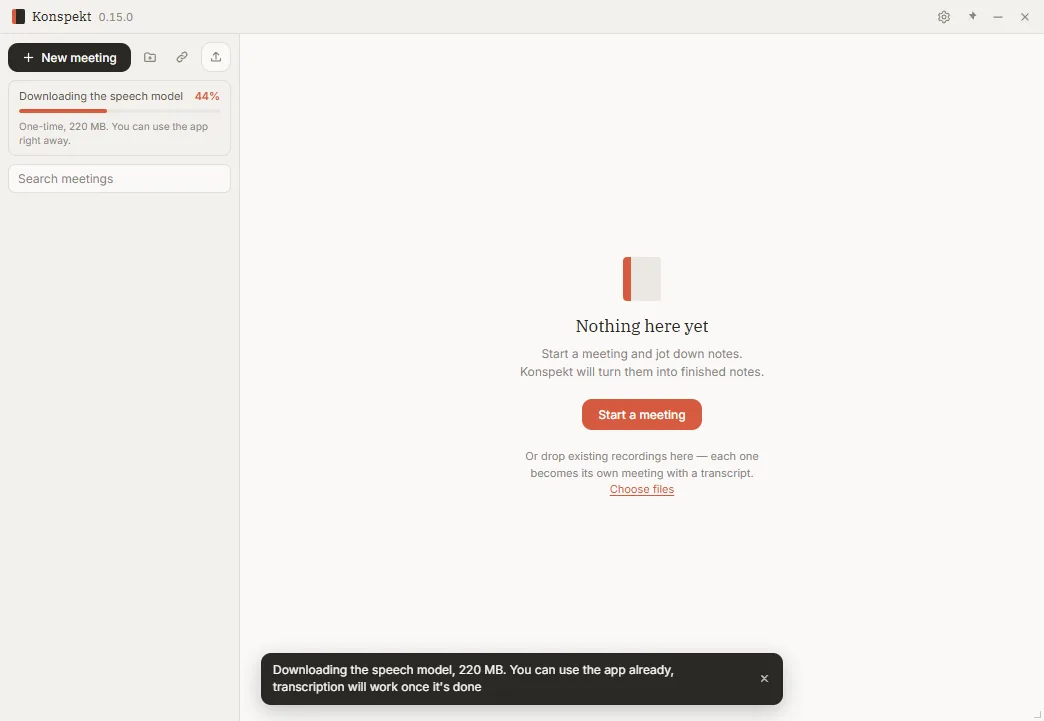
The speech model downloads once in the background; after that, transcription runs on your computer without the internet. Existing recordings can be dropped into the window right away.

How to

  1. Install Konspekt and open it.
  2. Wait for the speech models to download: about 720 MB, once.
  3. Drop recordings into the window: each one becomes its own call with a transcript.
Konspekt on first launch: an empty list while the speech model downloads

What you get for every call

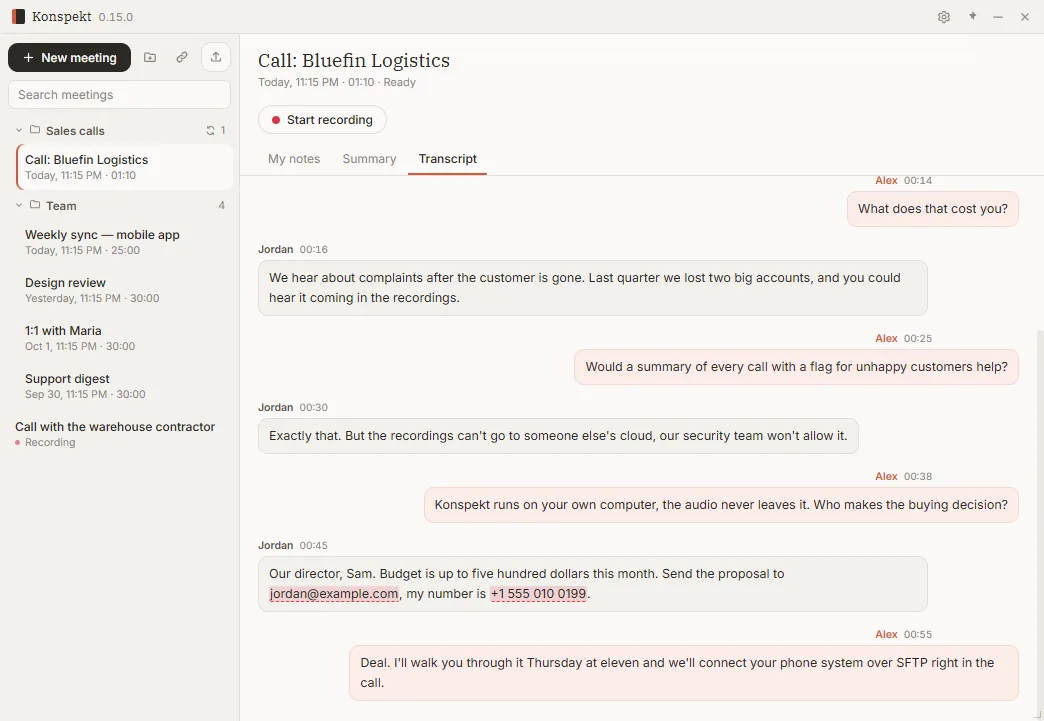
Transcript with speaker identification

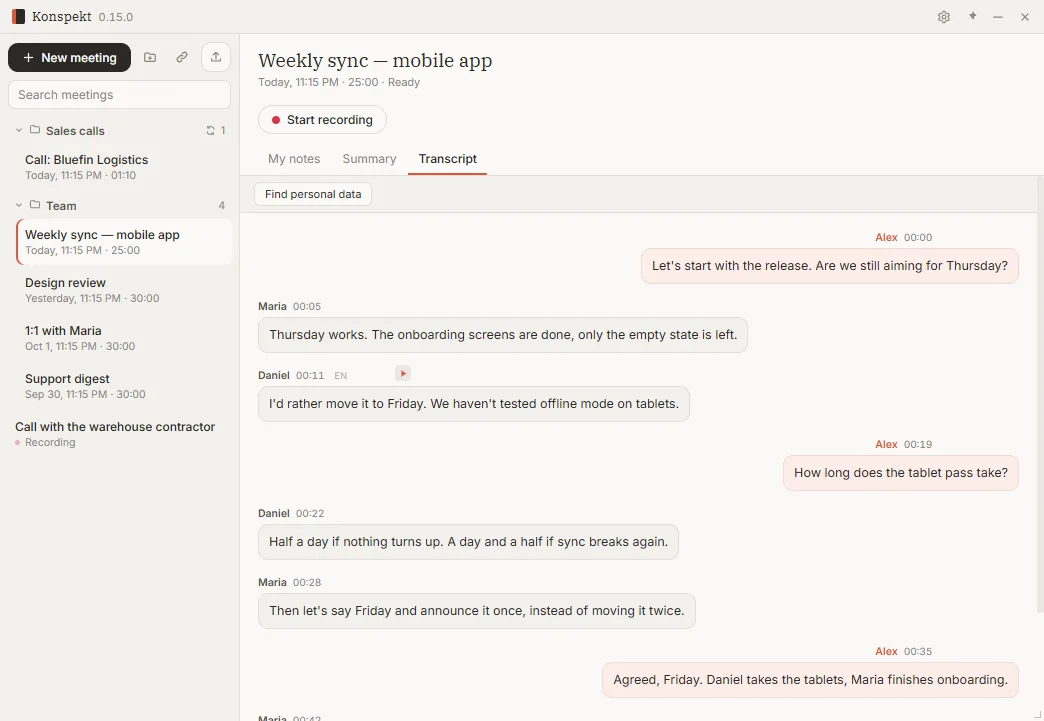
Every line is labeled with who said it and when. Name a speaker once, and Konspekt recognizes their voice in later calls.

How to

  1. Open a call and the “Transcript” tab.
  2. Click a name to rename the speaker.
  3. “Replay this line” plays exactly that piece of the recording.
Call transcript with speaker identification: each line labeled with a name and time

Sales call breakdown: SPIN and BANT

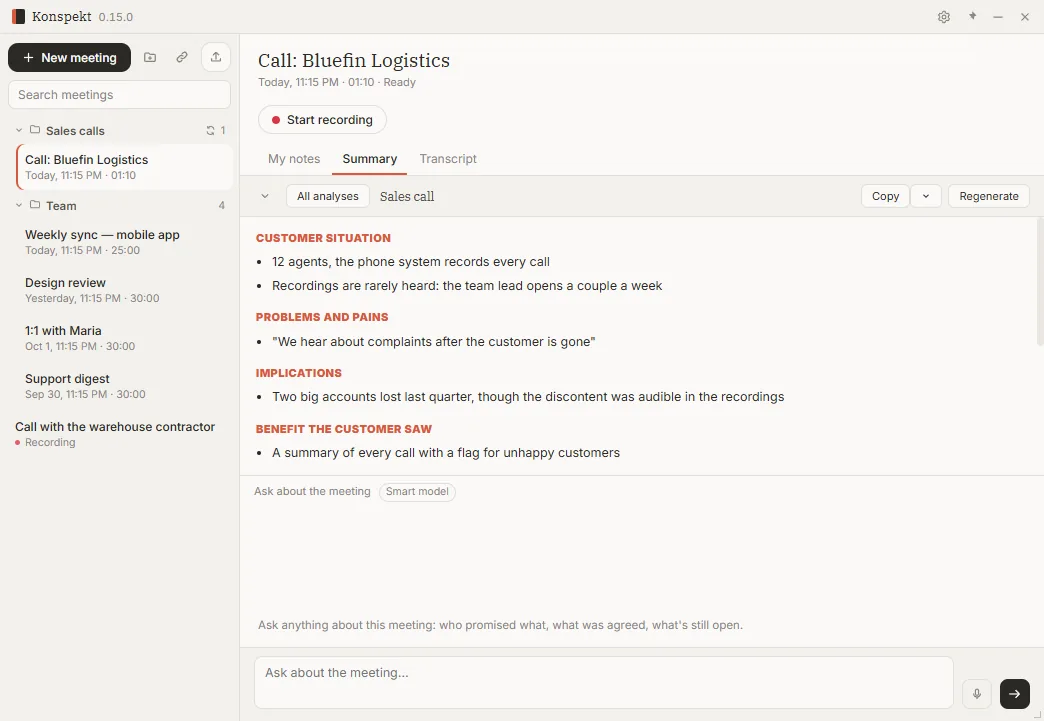
For sales calls: the client’s situation, problems and their consequences, the value they saw, who makes the decision and what the budget is.

How to

  1. Open a call, “Summary” → “All analyses” → “Sales call”.
  2. Copy the breakdown into your CRM or send it to a manager.
Sales call breakdown: client situation, problems, consequences and value

Other breakdowns

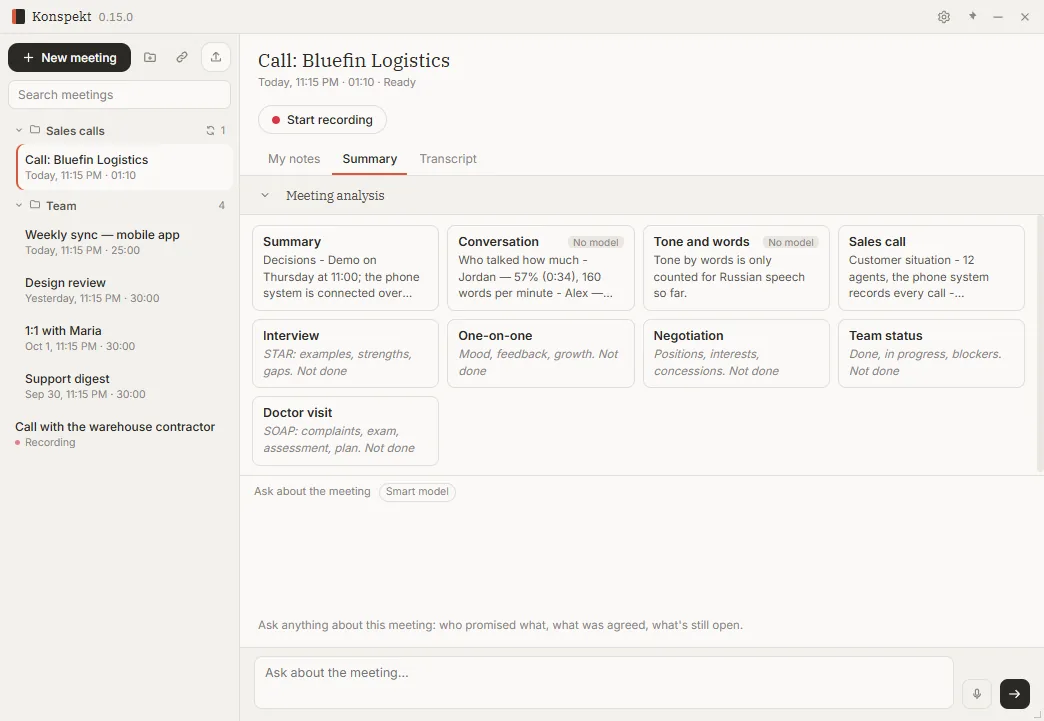
The same call can be broken down for a different purpose: a job interview (STAR), a negotiation (Harvard method), a one-on-one or a team status update. Each breakdown is kept separately.

How to

  1. On the “Summary” tab, click “All analyses”.
  2. Click a “Not done” card to run it; “Outdated” means the call grew after the analysis.
Grid of call breakdowns: sales call, interview, negotiation and others

Talk-time stats

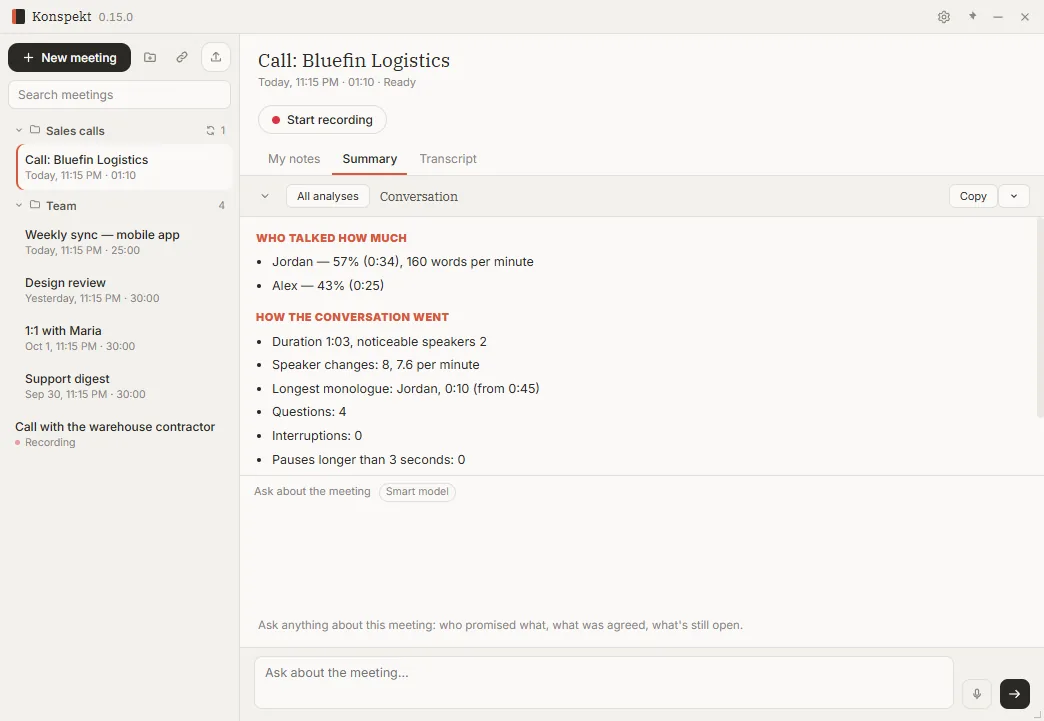
Numbers are ready at once, no model needed: each person’s share of talk time and pace, the longest monologue, questions, interruptions and pauses. Useful for coaching: did the rep listen or just talk?

How to

  1. Open “Summary” → “All analyses” → “Conversation”.
  2. It is a hint based on words and timing, not a judgement of a person.
Talk-time stats: each speaker’s share, pace, interruptions and pauses

Call notes

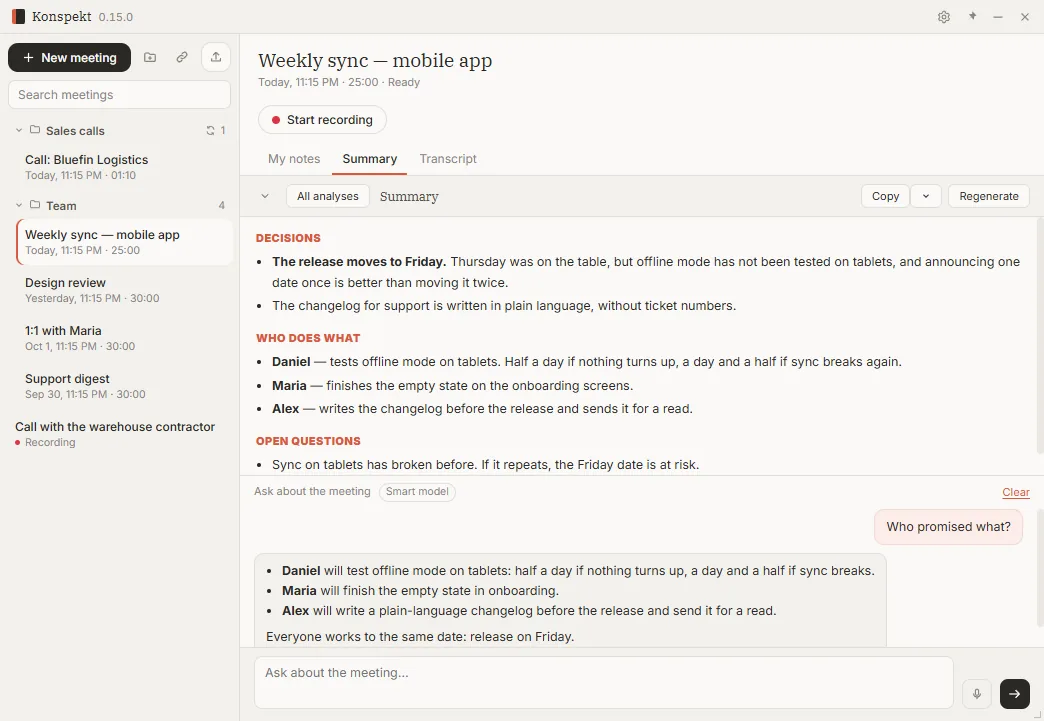
What was agreed, who does what and which questions remain, written by a model on your computer, in the language of the call.

How to

  1. Open a call, the “Summary” tab.
  2. “Copy” takes the whole summary; the menu next to it can copy without personal data.
Call notes: agreements, next steps and open questions

Ask about a call

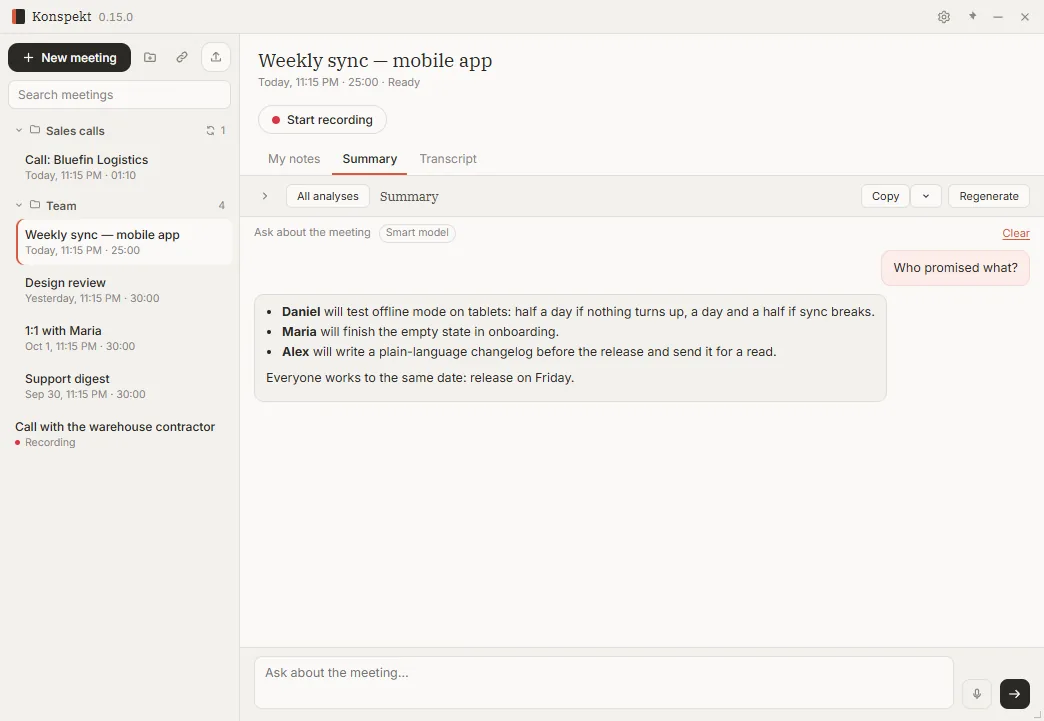
Ask in your own words: what did the client promise, what objections came up, what did we agree on price? The answer comes from that call.

How to

  1. Type your question in “Ask about the meeting…” at the bottom and press the arrow.
  2. “Clear” starts over.
A question about a call and the answer based on its transcript

Find and share safely

Search all calls and sort them into folders

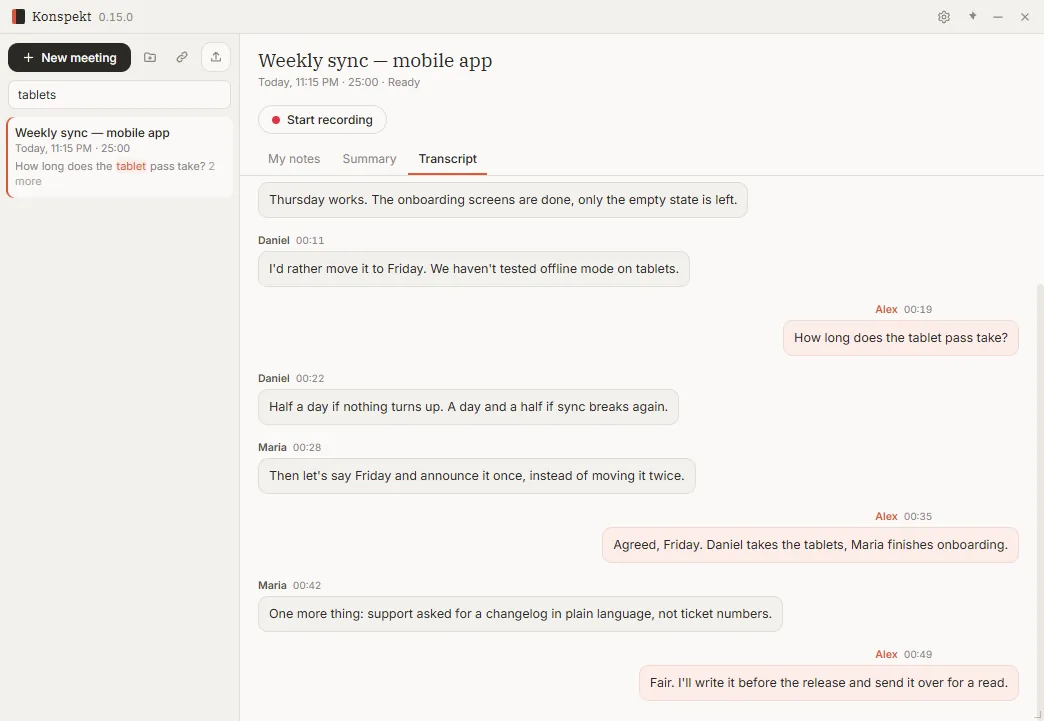
Search runs through the text of every call at once. Folders keep lines, teams or clients apart, and each folder can have its own recordings source.

How to

  1. Type a word in “Search meetings”: the match is highlighted right in the list.
  2. Drag a call into a folder, or right-click it and choose “Move to folder”.
Searching all calls: the found word highlighted in a transcript

Share notes without card numbers and IBANs

Before a transcript leaves your computer, see what should not: email addresses, phone numbers with a country code, card numbers and IBANs (checked by checksum, so ordinary numbers are not flagged).

How to

  1. On the “Transcript” tab, click “Find personal data”.
  2. Copy the summary with “Without personal data”: numbers are replaced with labels.
Personal data highlighted in a call transcript before sharing

Team workflow and settings

Call summaries in Telegram

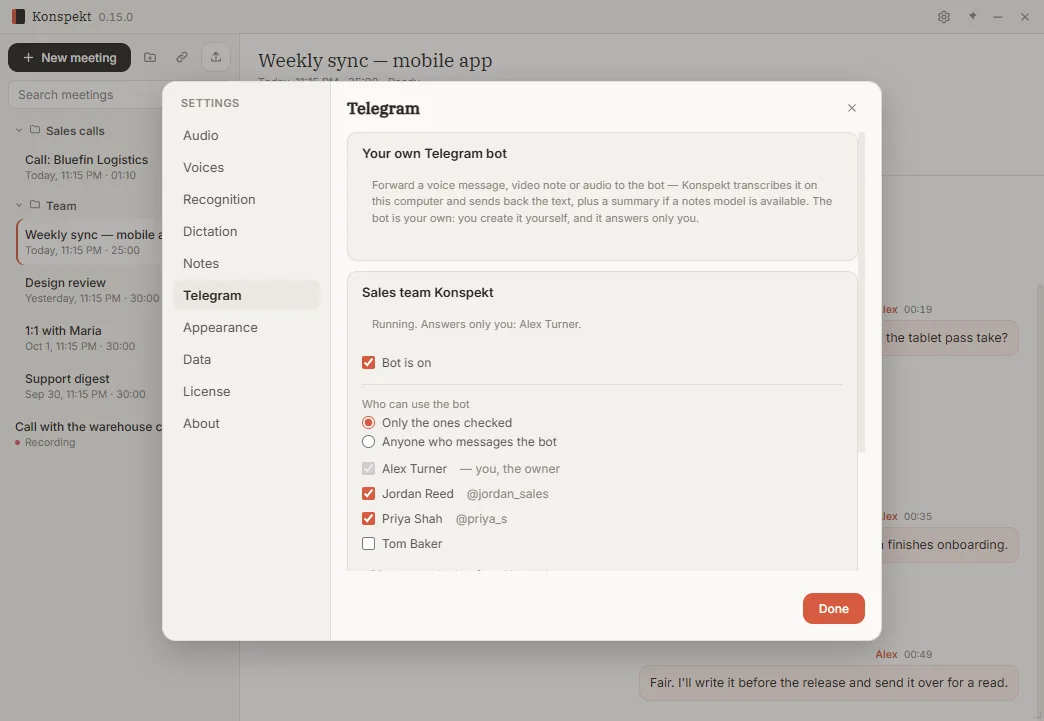
Connect your own Telegram bot, and summaries of new calls from a folder arrive there by themselves: a manager sees the day’s calls without opening the app. The bot answers only the people you allow.

How to

  1. Create a bot with @BotFather and paste its token into “Settings” → “Telegram”.
  2. Right-click the folder with calls → “Send summaries to Telegram”.
  3. The bot works while Konspekt is running.
Telegram bot settings in Konspekt: who can use the bot

Notes model or your own server

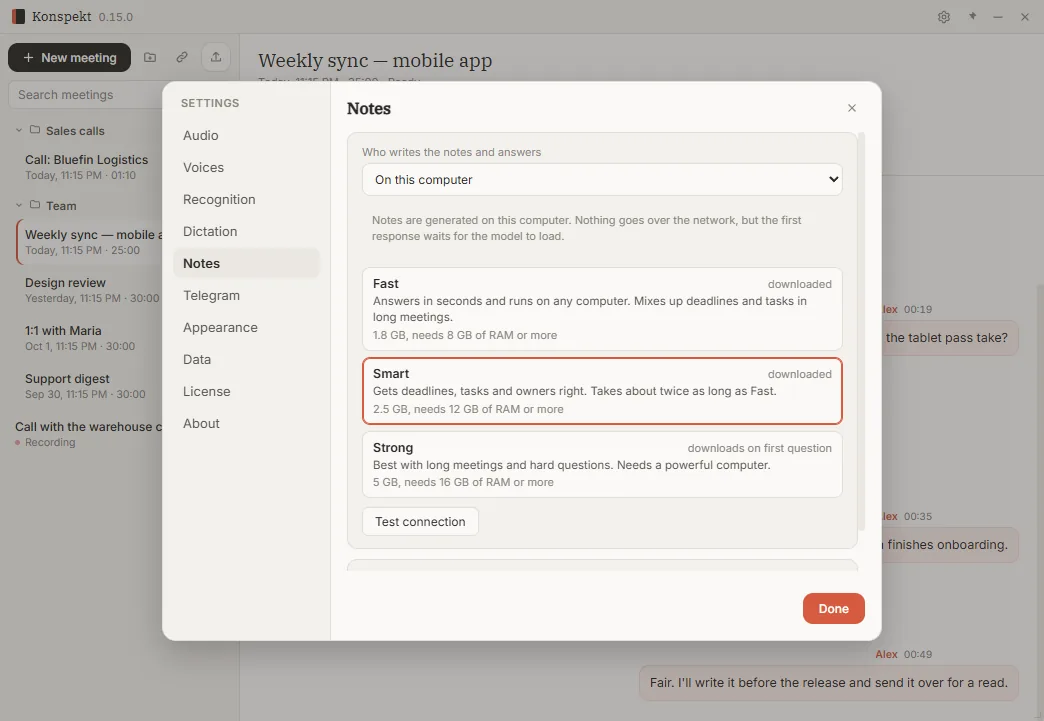
Summaries and breakdowns are written by a model on your computer; pick one for your hardware. Or connect your company’s own server with a model.

How to

  1. Open “Settings” → “Notes”.
  2. Choose “Fast”, “Smart” or “Strong”: the screen shows size and memory needed.
  3. Or connect an OpenAI-compatible server: address, key and model name.
Choosing a notes model: Fast, Smart or Strong

License

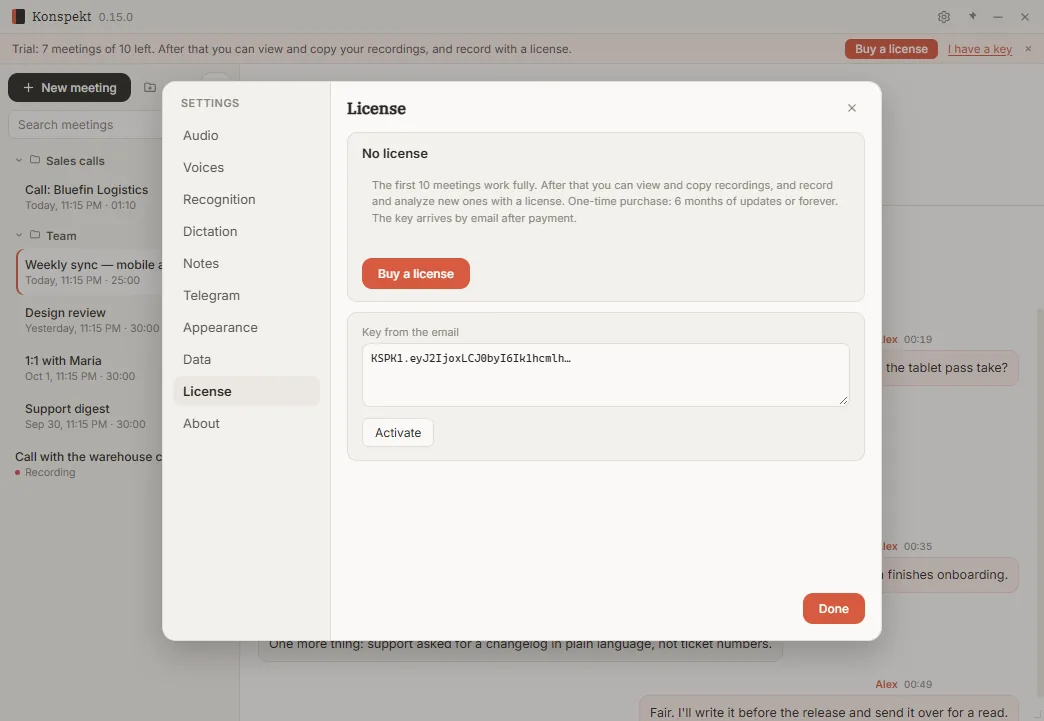
The first 10 calls get the full app. After that, everything stays viewable and searchable, and new calls need a license: 6 months of updates or lifetime, bought once.

How to

  1. A bar under the window title shows how many trial calls are left.
  2. Paste the key from the email into “Settings” → “License” and click “Activate”. It is checked offline.
The License section: a field for the key from the email

Try it on your own calls

Your first 10 calls are unlimited. Windows 10 and 11, no graphics card needed. Screenshots taken in version 0.15.0.

Buy a license (checkout on aisearch.tech)

Konspekt also records Zoom, Teams and Google Meet calls on your PC. See how on aisearch.tech